
Conversations
This page covers everything in the message box and the conversation view: sending, attaching files, slash commands, queuing messages while Pi is busy, pausing, and choosing a model.
Send a message
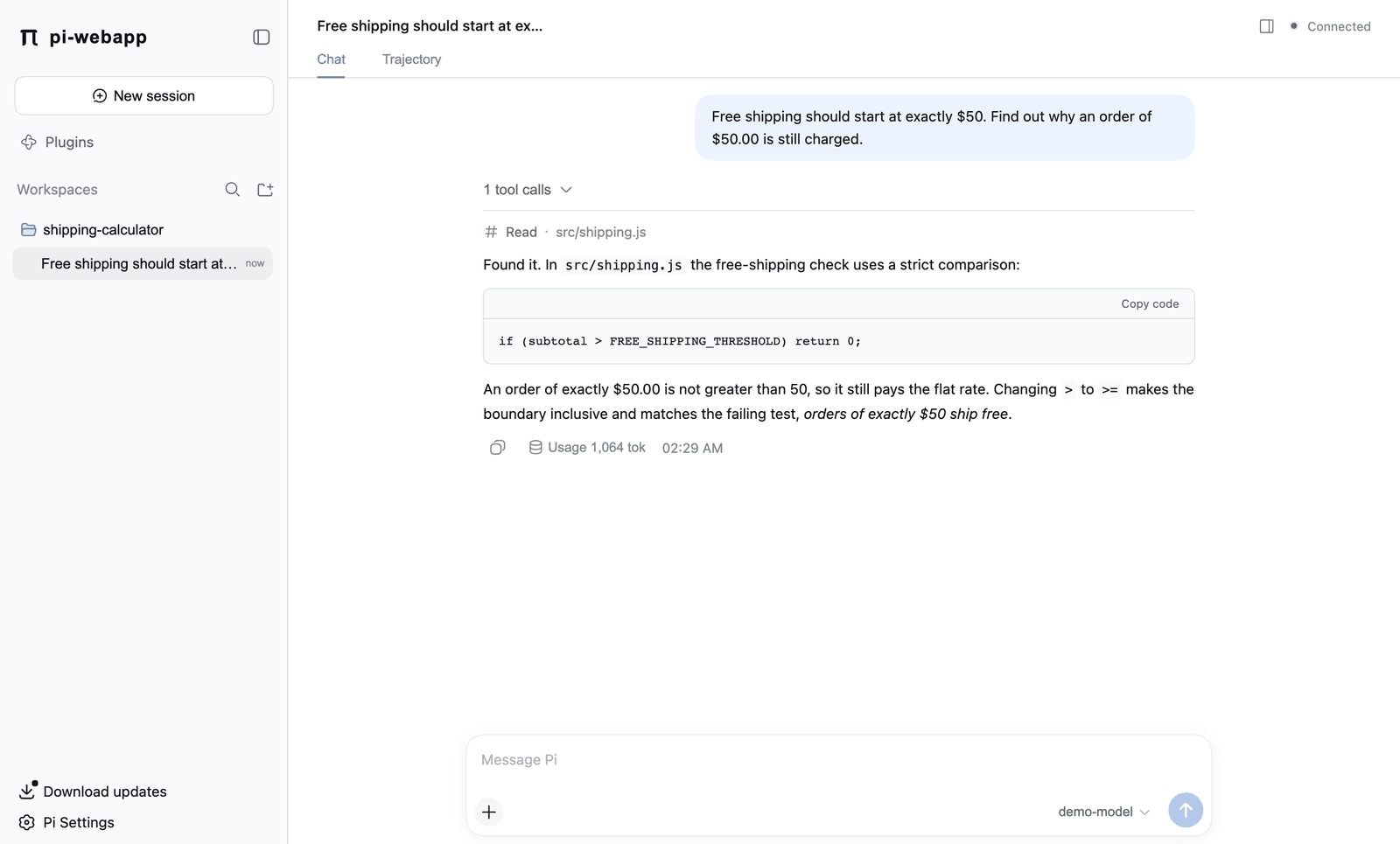
Type in the box at the bottom and press Enter. Press Shift+Enter for a new line. The conversation shows Markdown, code blocks (each with Copy code), and links to workspace files that open as previews in the Files tool.
Under each reply, Copy reply copies the text and the Usage figure shows the tokens it used.
A small indicator at the top right reads Connected while the page has a live link to the service, and Disconnected if it lost it. The sidebar shows Running or Idle for every chat.
Read what the agent did
Pi's work appears inline between your message and its answer:
- Tool calls are collapsed into a row such as 1 tool calls. Click it to see each call and its result.
- Reasoning from models that expose it appears as an expandable row.
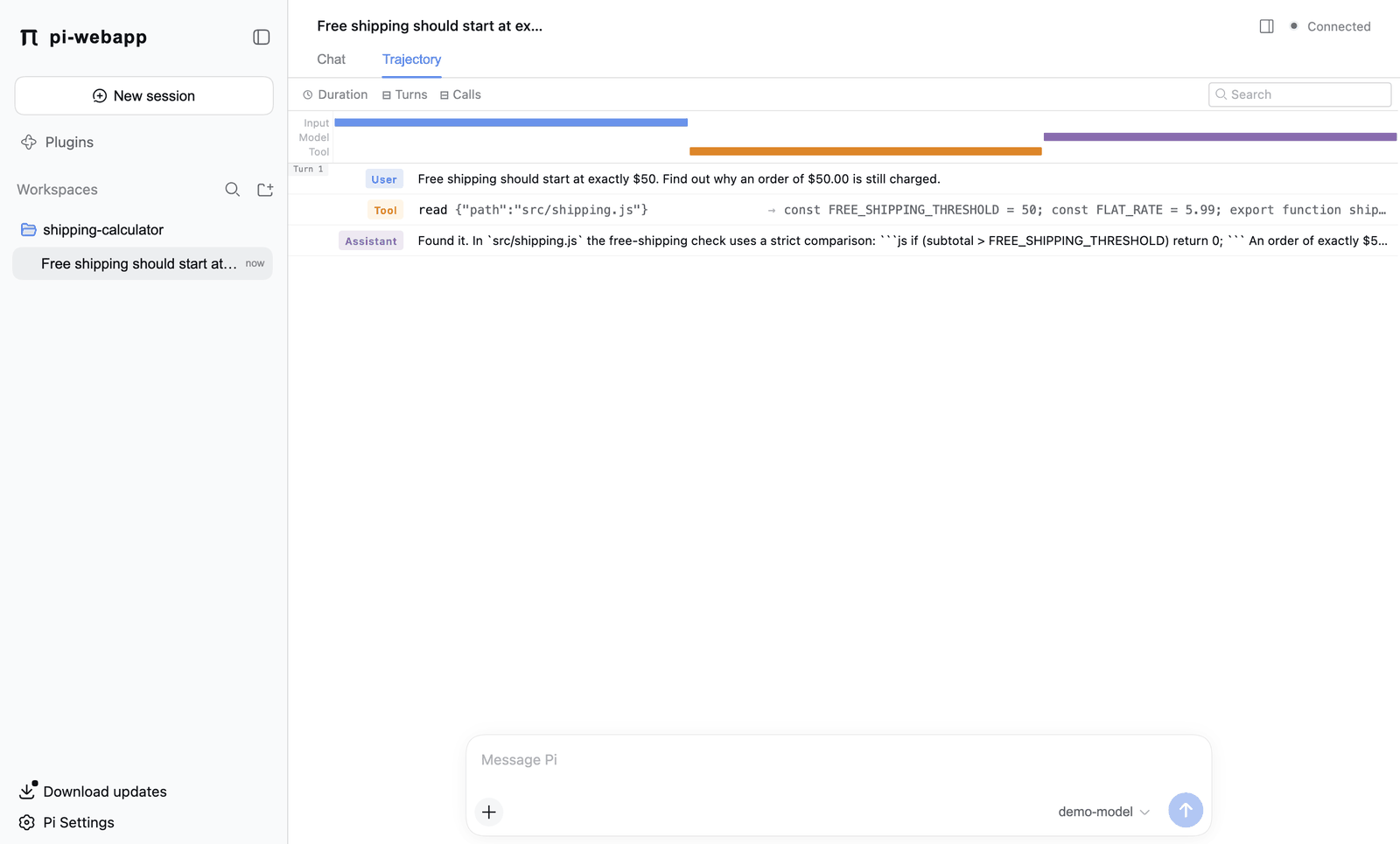
For a turn-by-turn view, switch from Chat to Trajectory at the top of the conversation. It lists every user message, tool call and assistant reply in order, with a timeline of where time went and per-call details (input, output, cache read and cache write tokens, and duration). Use the search box to filter, and choose between ordering by event or by recorded time.
Attach files and images
| How | Notes |
|---|---|
| The + button, then Add → File | Opens your file chooser. |
| Drag a file onto the page | A Drop to upload files overlay appears. |
| Paste | Pasting files or screenshots from the clipboard attaches them. |
You can attach up to 20 files, each non-empty and no larger than 20 MB. Images (PNG, JPEG, GIF and WebP) get a preview and are sent to the model as images, which works only if the model accepts image input. You can mark a model's input types under Models and providers.
Attachments go to your model provider
Don't attach API keys, credential files, private keys or data you aren't allowed to share. Attached content is sent to the provider you chose and falls under its data policy.
Slash commands and the + menu
Type / as the first character of the box, or click +, to open the command menu. Move with the arrow keys, choose with Enter or Tab, and close with Esc.
The menu always has:
- Compact: compacts the current session's history to free context.
- Model: choose the model for this session.
- New session: start a new chat in the current workspace.
It also lists commands from the extensions you've installed, and one skill: entry for each Pi skill that Pi found on your machine (Packages, skills and plugins).
Slash commands run only when Pi is idle. While it is working you'll see Wait for the current reply before running slash commands, and a queued message can't start with /.
Send while Pi is working
You don't have to wait for a reply to finish. Type your next message while Pi is working:
- Enter adds it to the Pending prompts queue. Pi handles it after the current task finishes.
- Ctrl+Enter (Cmd+Enter on macOS) sends it as a steer instead: it reaches Pi at its next opportunity, without killing the tool that is running.
Each queued message has Edit, Delete and Send (steer). Editing keeps attachments; Save changes or Cancel edit closes the editor. Reordering isn't supported.
Good to know:
- The queue lives in the service's memory. It does not survive a restart, and a message Pi has already accepted can no longer be edited or removed.
- You can queue at most 50 messages, each up to 32,000 characters.
Pause and continue
While Pi works, the send button turns into Pause. Pausing stops the current execution and keeps the progress so far. It affects only that chat, not other chats and not the service.
A paused chat with an empty message box shows Continue. Continue starts a new request to the model that carries the original task, the tool results so far and the partial reply. It does not resume the exact interrupted network stream. Queued messages wait for Continue, labelled Paused; processed on resume.
You can't Continue a chat that is still running, one that finished normally, or one with an interaction still waiting for your answer. Answer or dismiss that interaction first.
Choose a model and reasoning effort
Open the model picker at the bottom right of the message box, choose Model, and pick from the providers you've connected. The choice applies to the current chat.
For models that support it, the picker also offers Reasoning effort: Off, Minimal, Low, Medium, High or Extra high. The control doesn't appear for models that don't reason.
If no model is available, the box says Connect a model to start chatting with a Set up a model button. See Models and providers.
Keyboard shortcuts at a glance
| Keys | Where | What it does |
|---|---|---|
| Enter | Message box | Send (or queue, if Pi is working) |
| Shift+Enter | Message box | New line |
| Ctrl/Cmd+Enter | Message box, Pi working | Send as a steer |
/ at the start | Message box | Open the command menu |
| Arrow keys, Enter or Tab, Esc | Command menu | Move, choose, close |
Next: Sessions and workspaces.