
Quick start
This page takes you from nothing to a working conversation in about five minutes, using the web launcher.
1. Check Node.js
node --versionYou need v22.19.0 or later. If the version is lower, install a current Node.js LTS from nodejs.org first.
2. Start pi-webapp in your project
Open a terminal in the folder you want to work on and run:
cd ~/projects/my-app
npx pi-webapp
The first run downloads the package and the Pi runtime it is pinned to, which took about 25 seconds on a fresh machine. Later runs start in a few seconds. When the service is ready you see:
pi-webapp 已在后台运行(PID 81627):http://127.0.0.1:63127/#2pYOwyI--fTihtd9Q4LO4LUf7Gz9ajb-
停止服务:pi-webapp stop(源码目录中可运行 npm run stop)
The command-line messages are in Chinese
The launcher prints Chinese only for now. The first line means "pi-webapp is running in the background (PID …): address". The second means "To stop the service: pi-webapp stop". Your port, PID and token will differ. All launcher messages are translated in the reference.
Your default browser opens on that address. If it doesn't (a remote machine, an SSH session, or a Linux box with no desktop), open the printed address in a browser on the same machine. See Remote machines before you forward it anywhere.
Keep the full address private. The part after # is an access token that lets whoever has it drive your agent.
3. Connect a model
On first start there is no model, so pi-webapp opens Pi Settings → Models with the title Connect a model to begin.
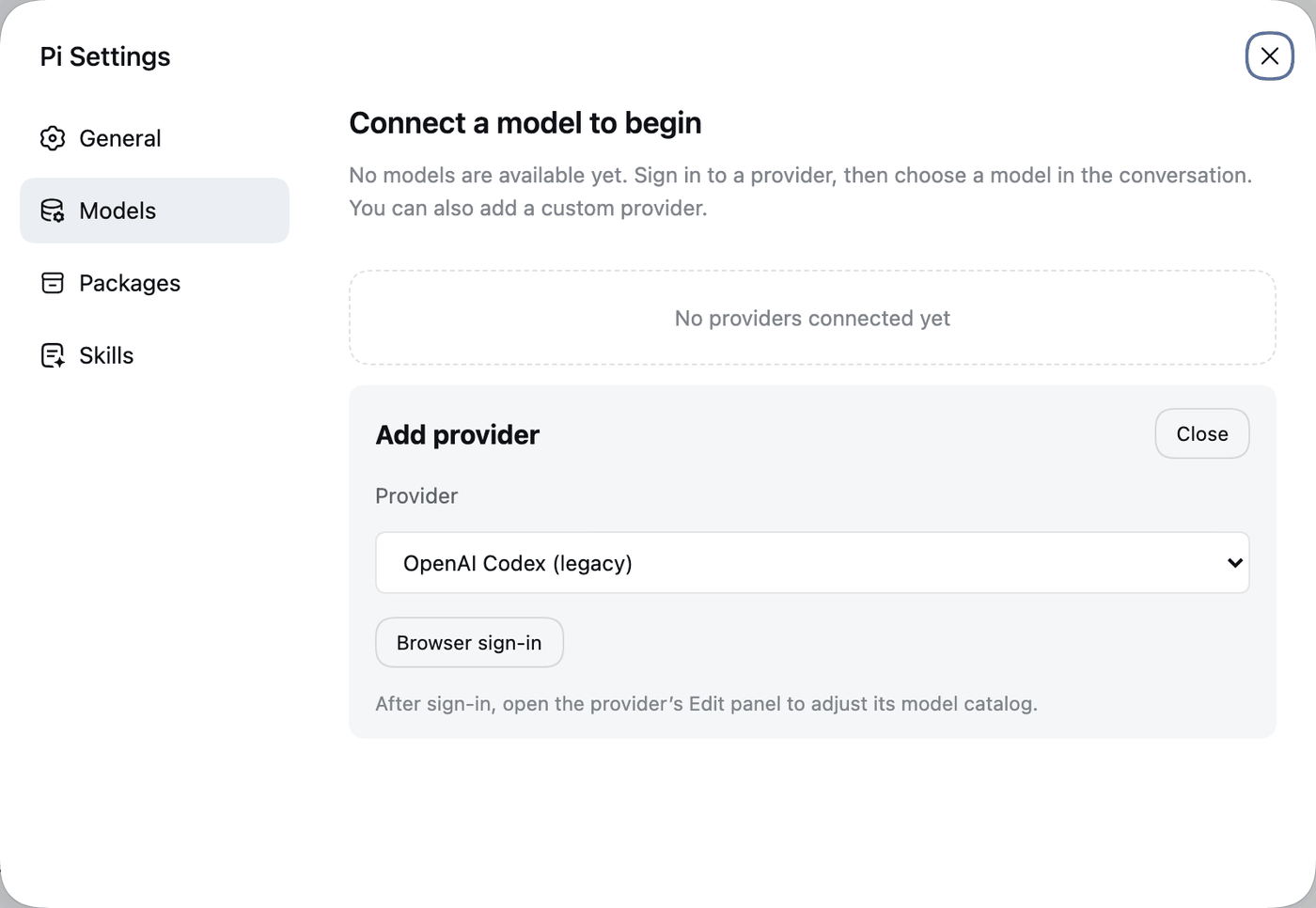
Pick whichever fits what you have:
- A provider that offers sign-in (the card shows Browser sign-in): click it, finish sign-in on the provider's page, and the dialog updates by itself. If the page can't reach your machine to complete the callback, the dialog offers Can't finish automatically? Enter an authorization code.
- A provider that uses an API key: choose it in the Provider list, paste the key and click Connect.
- Your own endpoint: close the card and choose + Add custom provider. See Models and providers.
When it says Connected, click Return to conversation and choose a model.
No key to hand?
The custom provider form accepts any OpenAI- or Anthropic-compatible URL, including a model server on your own machine. That is also how you can try pi-webapp without an account, with a local server.
4. Send your first message
Open the model picker at the bottom right of the message box, choose Model, and select a model.
Type a read-only first request and press Enter:
textExplain how you can help me in this project. Don't change any files yet.The reply streams in. The chat gets a title from your first message and appears under the workspace in the sidebar.
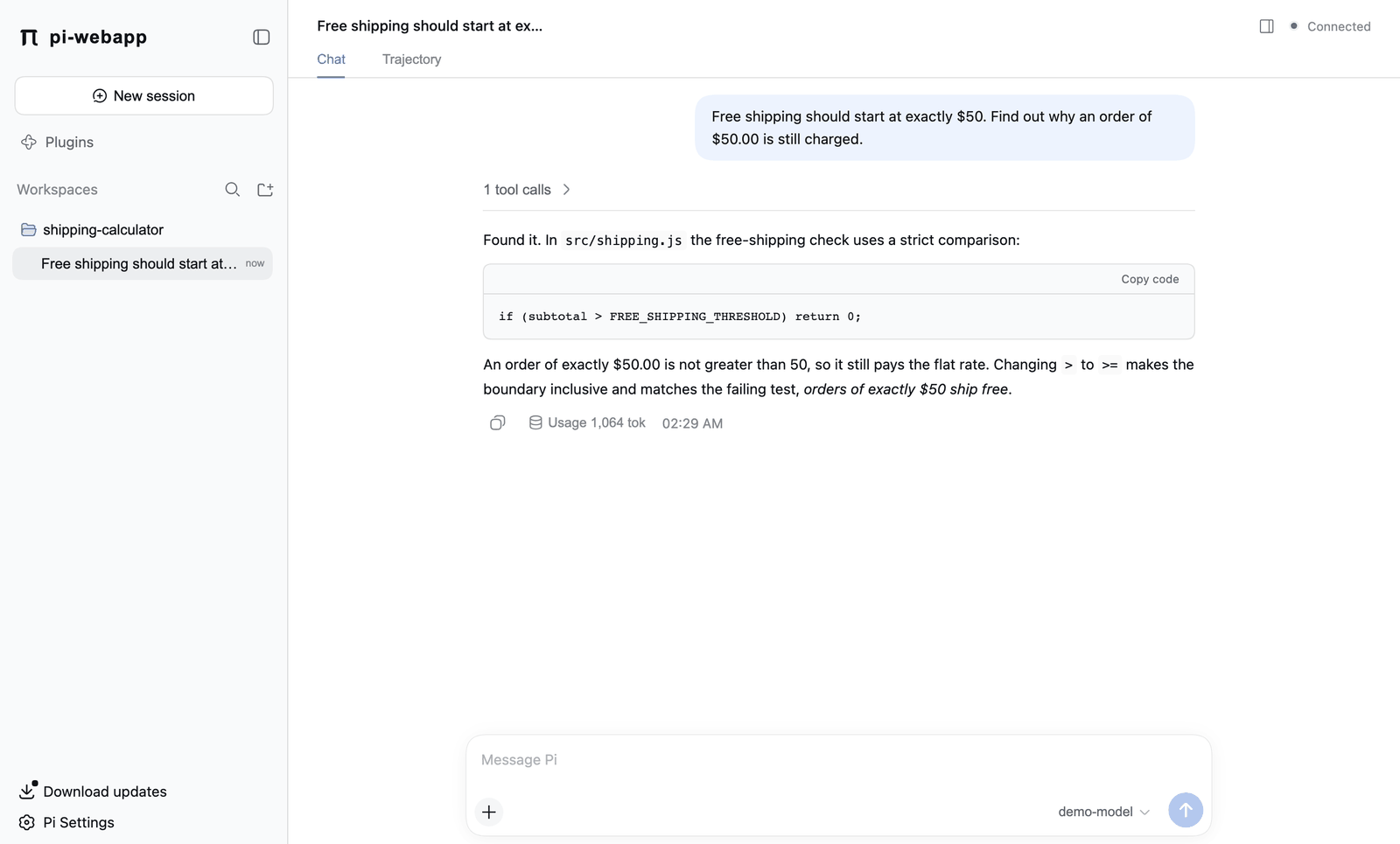
A finished reply with a Usage line under it is your confirmation that everything is connected. If you get an authentication or network error instead, see Troubleshooting.
5. Open Files, Terminal or Git
Click the panel icon in the upper right of the conversation to open the right sidebar. Its start page offers Workspace files, Open terminal and Git changes. They are covered in Files, terminal and Git.
6. Stop it, and start it again
npx pi-webapp status
npx pi-webapp stop
status prints pi-webapp 正在运行: followed by the address, or pi-webapp 未运行 if nothing is running. stop prints pi-webapp 已停止 (stopped). Stopping ends all running chats and terminals, so finish your work first.
Closing the browser tab does not stop the service. After you stop and start it again the address has a new port and a new token, so an old bookmark won't work.
Prefer a global command?
npm install -g pi-webapp gives you a pi-webapp command to use instead of npx pi-webapp.
Things worth knowing on day two
- Run it from another folder? If the service is already running,
npx pi-webapponly prints and reopens the existing address; it does not add the new folder. Use Add workspace in the sidebar instead (Sessions and workspaces). - Interface language. The interface follows your browser language. To change it, open Pi Settings → General → Language.
- Updating. Pi Settings → General → App updates can update the launcher for you. See Updates.
Next steps
- Conversations: attachments, slash commands, pausing and queued messages
- Sessions and workspaces: several projects at once
- Models and providers: more than one model, custom endpoints
- Security and privacy: what the agent can touch