
Files, terminal and Git
This page shows how to use the three built-in tools next to a conversation: preview files, run commands in a real terminal, and review and commit changes.
Open the tool panel
Click the panel icon in the upper right of a conversation to open the right sidebar. Its start page offers three tools:
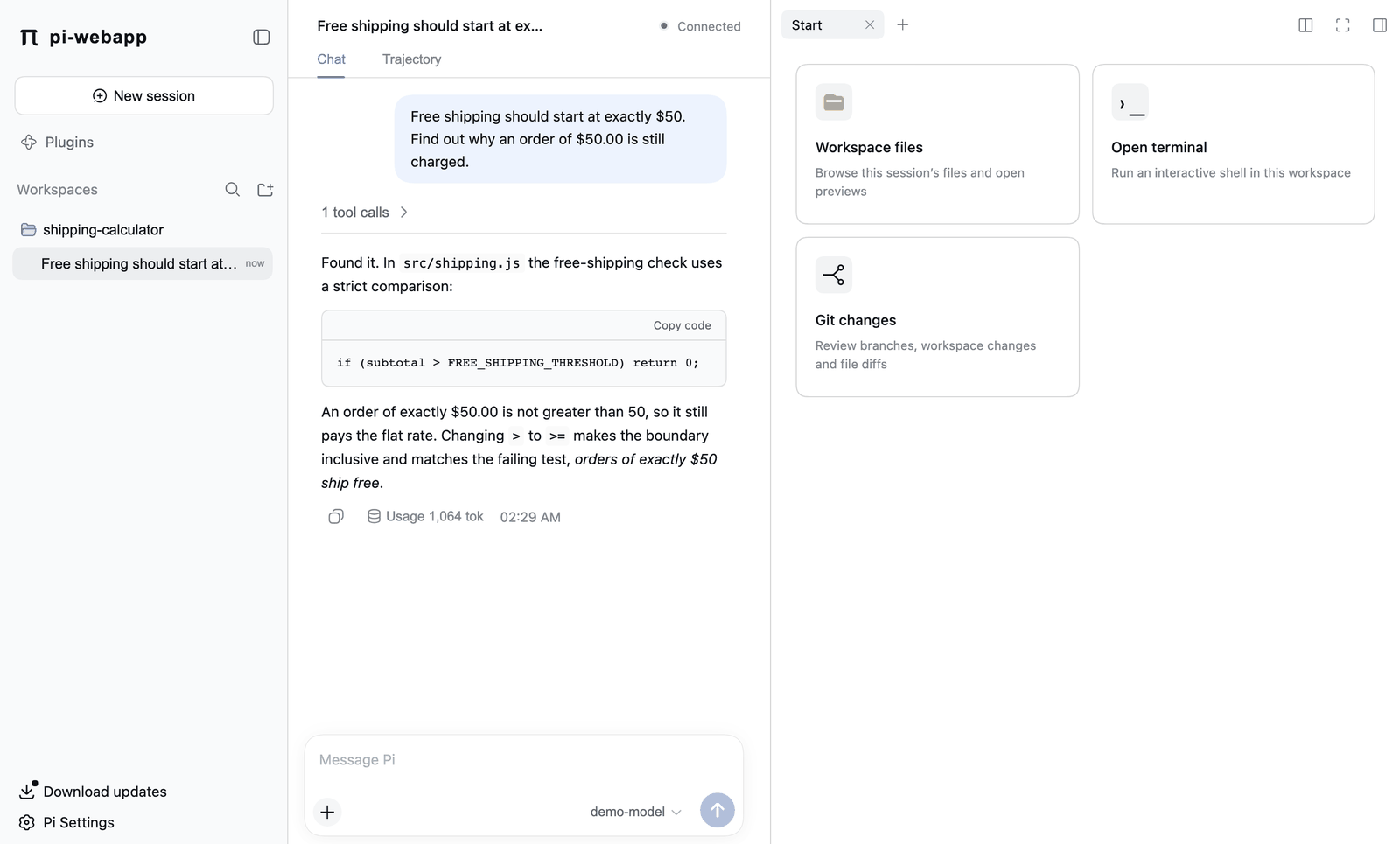
Each tool opens in a tab. Use the + at the end of the tab bar to open more, Split to place two tools side by side, and Fullscreen to give the panel the whole window. Every chat keeps its own tabs while the page stays open; reloading the page resets them.
If you install the Excalidraw plugin, its entry appears on the same start page.
Files
Choose Workspace files to browse the workspace. Click a file to open a read-only preview in a new tab. File links the agent writes in chat (paths inside the workspace) open the same preview.
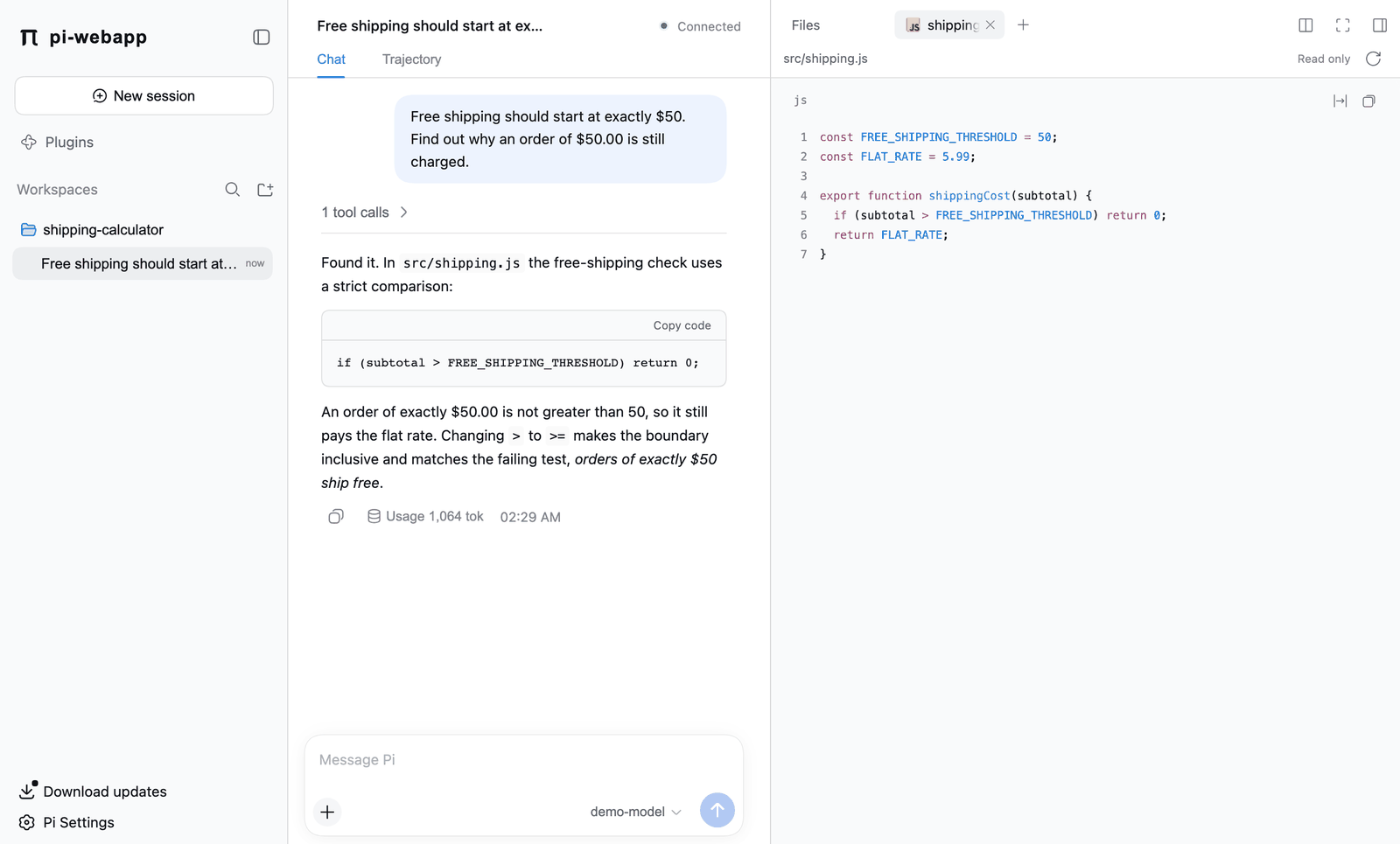
| File type | Preview |
|---|---|
| Code and text | Syntax highlighting with line numbers. |
| Markdown | Switch between a rendered view and the source. |
| PNG, JPEG, GIF, WebP | An image you can open full size. |
| HTML and SVG | Shown as source text. They are never run. |
| Other binary files | A notice that they can't be previewed. |
Limits: up to 1,000 entries per folder, 512 KB or 10,000 lines of text, and 8 MB per image. The previewer only reads inside the workspace and follows no symlink that leads outside it. Use the refresh button to reload a listing or preview; they don't update on their own.
Previews are read-only. To change a file, ask Pi or use your editor.
Terminal
Choose Open terminal for an interactive shell that starts in the workspace folder.
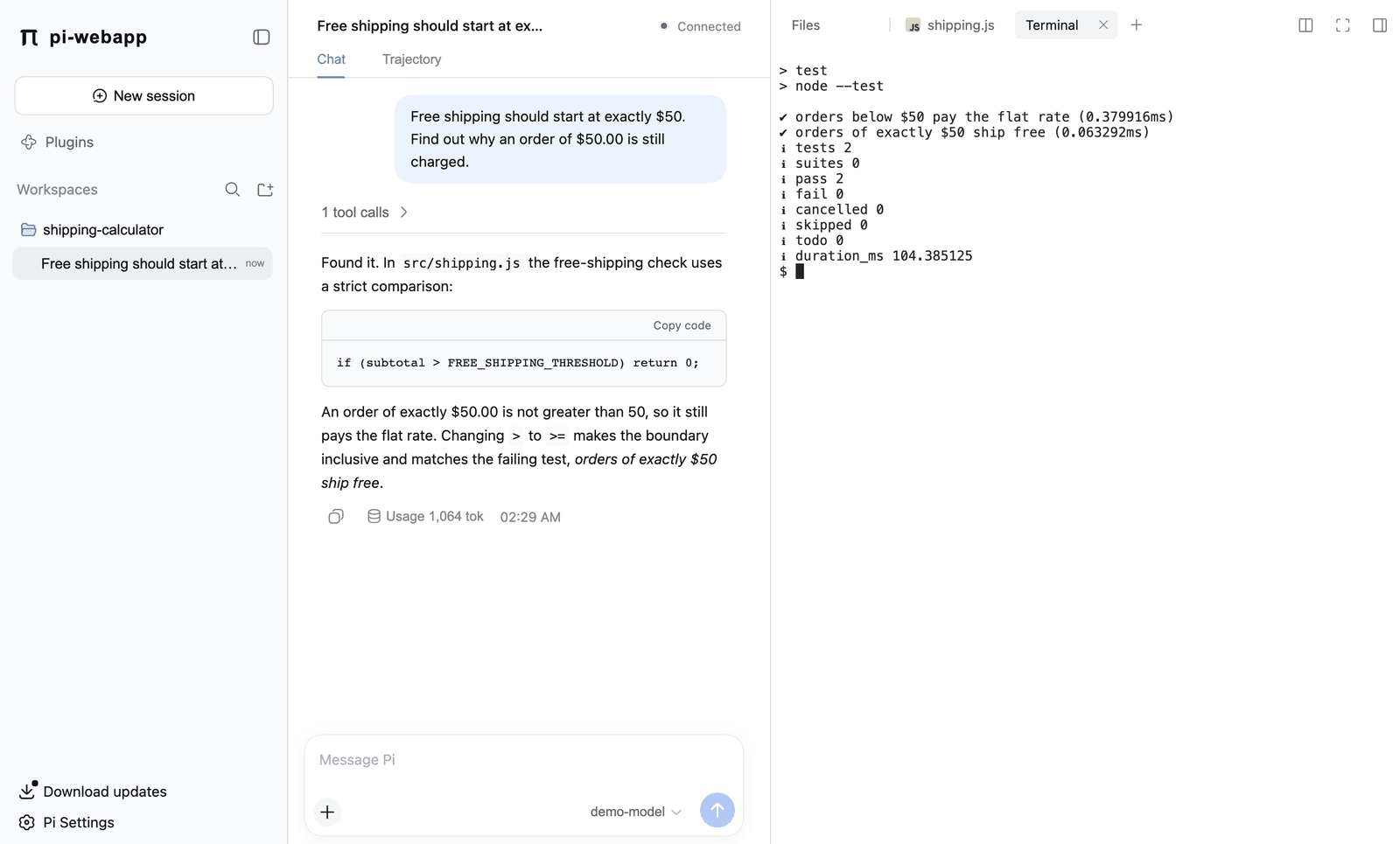
- The shell is your login shell (
$SHELL, falling back to/bin/sh), started interactively. On Windows it is%COMSPEC%, usuallycmd.exe. If that program is missing or not executable, the terminal reports an error and you fixSHELL(orCOMSPEC) and restart the service. - Typing, Ctrl+C, resizing and full-screen programs work as in a normal terminal. Each terminal keeps 2,000 lines of scrollback.
- Switching tabs or chats, or collapsing the sidebar, keeps the process running. A short browser disconnect reconnects without replaying uncertain input; a browser that stays away for more than five minutes loses its hold on the terminal.
- You can have 8 terminals per chat and 32 per service.
- Closing a terminal tab, or stopping the service, ends its process. Reloading the page doesn't bring tabs back, and restarting the service doesn't bring processes back.
The terminal is not sandboxed
Commands run with your user's permissions. The workspace is only the starting folder. Check what you paste before you run it.
Git
Choose Git changes. Git must be installed on the machine running the service.
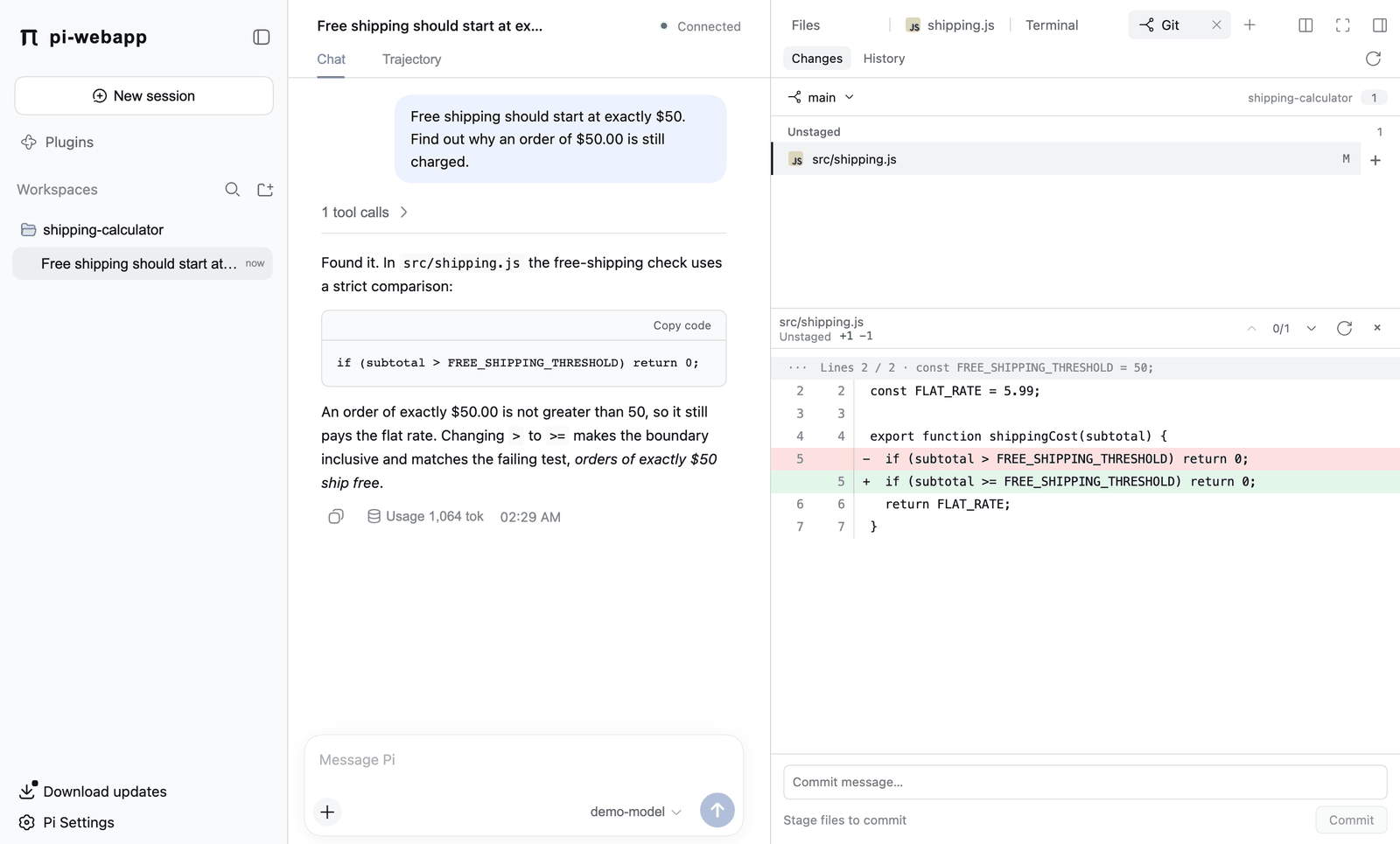
Changes lists unstaged, staged and untracked files (up to 1,000). Click a file to see its diff beside the list, and step through change blocks with the arrows. Diffs over 512 KB or 10,000 lines, binary files, submodules and conflicted files may show only a notice.
Things you can do:
| Task | How |
|---|---|
| Stage or unstage | The + or − at the end of a file row. |
| Commit | Type a message in the box at the bottom and click Commit, or press Ctrl/Cmd+Enter. Only the staged files are committed. Hooks and signing configured in Git are honored. |
| Switch or create a local branch | Click the branch name at the top; search the list or choose New branch. |
| Browse history | The History tab loads 50 commits at a time with commit details, including merge-parent comparisons. |
Pushing, fetching, stashing and discarding changes are not available here; use the terminal tab for those.
Writes affect everything in the working tree
Commits and branch switches need the workspace's root folder. Switching branches also needs a clean tree, untracked files included. All chats that share the working tree must be idle first. A stale view, a lock file, an unresolved conflict, a Git operation already in progress, or a branch that another worktree has checked out all block a write. A failed or uncertain write is never retried automatically.
Remote branch labels and ahead/behind counts come from what Git already knows locally; pi-webapp never fetches.
Turn a tool off
Files, Terminal and Git can each be switched off under Plugins in the sidebar. See Packages, skills and plugins. Turning Terminal off ends every terminal on the service.
Next: Diagrams with Excalidraw.