
Packages, skills and plugins
This page explains the four kinds of add-ons pi-webapp can show, where to manage each, and how to turn the built-in tools on and off.
Which is which
These terms are easy to mix up because they sit near each other in the interface.
| Term | What it is | Where you manage it |
|---|---|---|
| Pi package | A bundle you install from npm, Git or a local folder. It can contain extensions and skills. | Pi Settings → Packages |
| Pi extension | Code that adds capabilities to Pi itself, such as new commands and tools. It can come from a package or be loaded on its own from a path. | Pi Settings → Packages |
| Skill | A folder or SKILL.md file of task guidance that Pi can load on demand. | Pi Settings → Skills |
| Plugin | A pi-webapp feature with its own screen: the built-in Files, Terminal and Git tools, and optional ones such as Excalidraw. | Plugins in the sidebar |
Installing a package is not the same as switching a plugin on or off, and the two live in different places on purpose.
Packages and extensions
Open Pi Settings → Packages. The page lists:
- Installed packages, with the extensions each one includes.
- Standalone extensions that aren't part of a package, each marked Enabled or Disabled and Project or Global.
- Add package, where you enter a source.
- Extension paths, for loading a single extension file or folder.
Add a package
Enter one of these in the Add package box and click Add:
| Source | Example |
|---|---|
| npm package | npm:@scope/package-name |
| Git repository | git:github.com/user/repo or https://github.com/user/repo |
| SSH | ssh://git@github.com/user/repo or git@github.com:user/repo |
| Local folder | /path/to/package |
Pi reloads its resources afterwards. The entry is saved to Pi's global settings (~/.pi/agent/settings.json), so the terminal Pi sees it too. To remove one, use its remove action in the list.
If you type a package source (anything starting with npm:, git:, http(s)://, ssh:// or git@) into the extension or skill box, the dialog stops you and offers Go to packages, because those boxes accept file paths only.
Load an extension from a path
Under Extension paths, enter the path to an extension file or folder and click Add. A package source here is rejected and flagged Not loaded: use Add package instead.
Skills
Pi Settings → Skills lists the skills Pi has discovered and loaded, with their paths. To add one that isn't discovered automatically, enter the path of a SKILL.md file or the folder that contains it under Configure skills manually.
Skills also appear as skill:<name> entries in the conversation's command menu.
Plugins
Click Plugins in the sidebar, under New session. The page has two groups, and a refresh button reads the latest state of both.
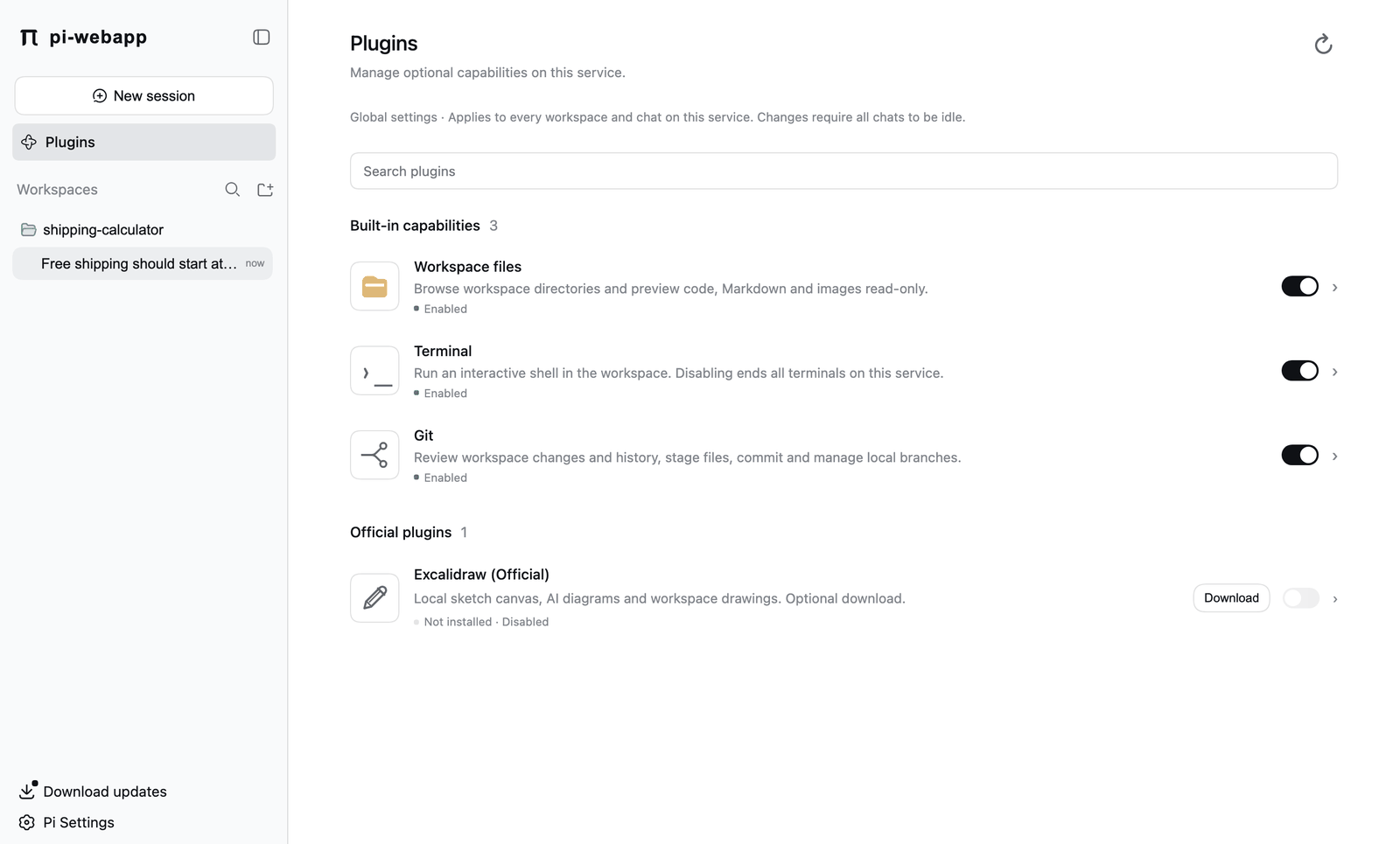
Built-in capabilities
Workspace files, Terminal and Git are on by default. Each has a switch.
- The switch is global: it applies to every workspace and chat on this service, and it persists across restarts.
- Switching needs every chat to be idle. The page says so; try again once they have finished.
- Turning a tool off closes its open tabs and blocks its requests. Turning off Terminal also ends every terminal on the service: a Disable Terminal? dialog warns that unsaved shell work may be lost, and you confirm with Disable and stop terminals.
- The switch shows what the service confirmed, not what you clicked.
Official plugins
Optional plugins that you download on demand. At the moment this is Excalidraw (Official). Press Download first, then enable it; the switch is unavailable until the plugin is installed. Click a row for its description, version, Check updates and Uninstall. The full flow is in Diagrams with Excalidraw.
Installed plugins can update on their own without replacing the page or interrupting your chats. An open editor delays the version switch, and a failed download is not retried automatically and never discards the version you have.
When do changes take effect?
- Adding, removing or editing packages, extensions and skills: Pi resources reload right away, and the dialog reports problems.
- A package that changes its own code after you've loaded it, or a plugin you're developing: the page does not replace backend code. Restart the service (
pi-webapp stop, then start it), or in a terminal session run/reloadand/web.
Plugin authors can find the development setup on the Developers page.