
Configuration overview
This page tells you where each setting lives, what it defaults to, and gives a few ready-made combinations.
pi-webapp has few settings of its own. Most things you'd want to change are in the Pi Settings dialog, the Plugins page or one environment variable. If a setting you expect isn't here, it probably doesn't exist; for example there is no setting for the port (FAQ).
Where to change what
| I want to… | Go to | Default |
|---|---|---|
| Connect a provider, add models, add my own endpoint | Pi Settings → Models (Models and providers) | No provider connected |
| Change the interface language | Pi Settings → General → Language | Your browser's language: Chinese if it starts with zh, otherwise English |
| Switch light or dark | Pi Settings → General → Appearance | System |
| Choose stable or preview updates | Pi Settings → General → Update preference (Updates) | Stable (recommended) |
| Update the app | Pi Settings → General → App updates | Manual |
| Add a Pi package or extension | Pi Settings → Packages (Packages, skills and plugins) | None added |
| Add a skill | Pi Settings → Skills | Skills Pi discovers on its own |
| Turn Files, Terminal or Git on or off | Plugins in the sidebar | All three on |
| Install the Excalidraw plugin | Plugins → Official plugins (Diagrams) | Not installed |
| Add or remove a workspace | Sidebar (Sessions and workspaces) | The launch folder and every folder with saved sessions |
| Move Pi's data folder | PI_CODING_AGENT_DIR (Environment variables) | ~/.pi/agent |
| Stop the browser opening on start | PI_WEBAPP_AUTO_OPEN=0 | Opens |
| Use a proxy | HTTPS_PROXY and friends | None |
| Turn error reporting on | PI_WEB_SENTRY_ENABLED=true | Off |
| Use a different shell in the terminal | SHELL (Windows: COMSPEC) | Your login shell |
The Pi Settings dialog
Open it with Pi Settings at the bottom of the sidebar. It has four sections:
| Section | What's in it |
|---|---|
| General | Language (English or Chinese), Appearance (Light, Dark or System), Update preference, and App updates with the current and target versions and the Check for updates and Update and restart buttons. |
| Models | Connected providers, + Add provider and + Add custom provider. |
| Packages | Installed packages, standalone extensions, Add package and Extension paths. |
| Skills | Discovered skills and manually configured paths. |
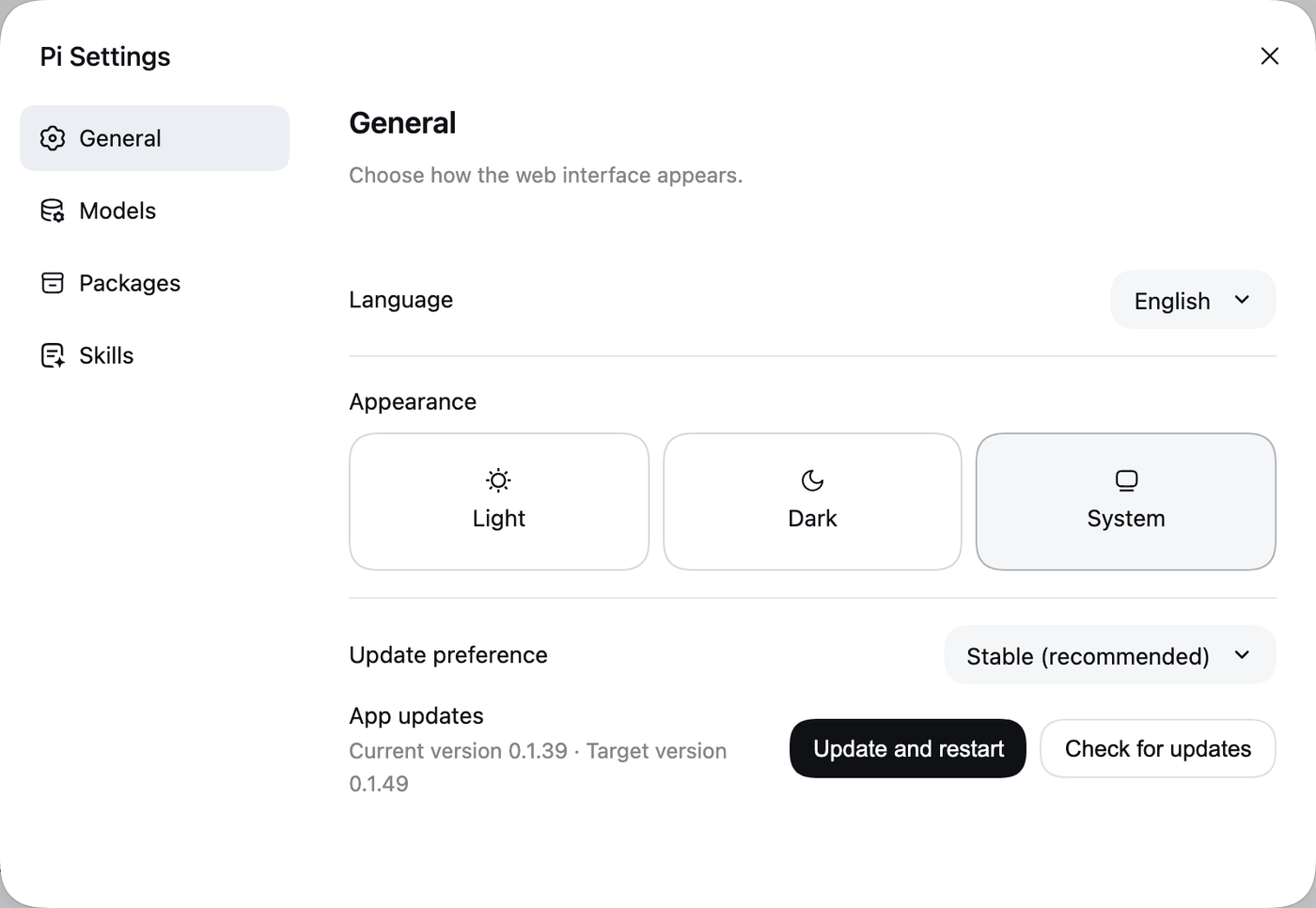
Language and appearance are remembered by your browser, per address
They are stored in the browser for the exact address you opened, and that includes the port. After the service restarts on a new port the browser can treat it as a new site and fall back to the defaults. Set them again if that happens.
Common combinations
A quiet background service on a remote machine (no browser to open, access over SSH):
PI_WEBAPP_AUTO_OPEN=0 npx pi-webappthen forward the port as described in Security → Remote machines.
A clean, throwaway setup for trying things without touching your real sessions or credentials:
PI_CODING_AGENT_DIR=/tmp/pi-scratch npx pi-webappIt runs as a second, separate service with its own data folder.
Behind a company proxy:
HTTPS_PROXY=http://proxy.example.com:3128 NO_PROXY=127.0.0.1,localhost npx pi-webappKeep everything on your machine: add a custom provider that points at a local model server, and leave error reporting off (the default).
Browser view of the Pi terminal, opened automatically:
PI_WEBAPP_AUTO_OPEN=1 piApplying changes
Changes in the Pi Settings dialog and the Plugins page apply right away. Environment variables apply only when the service starts: stop it and start it again (Environment variables).