
Updates
This page explains how to update pi-webapp for each way of running it, what the stable and preview channels mean, and how to recover if an update doesn't come back.
Updating restarts the service, which ends running chats and terminals. Before you start, let every chat finish (or pause it), close terminals, and save and close any open drawings.
Which update applies to me?
| You run… | Update with… |
|---|---|
npx pi-webapp or the global pi-webapp command | Pi Settings → General → App updates (below) |
| The desktop app | Business package: the same Settings page. The app shell itself: manual install. |
/web inside the Pi terminal | pi update npm:pi-webapp, then restart Pi |
| A source checkout | git pull, npm ci, npm run build, restart |
Update from the page (web launcher and desktop)
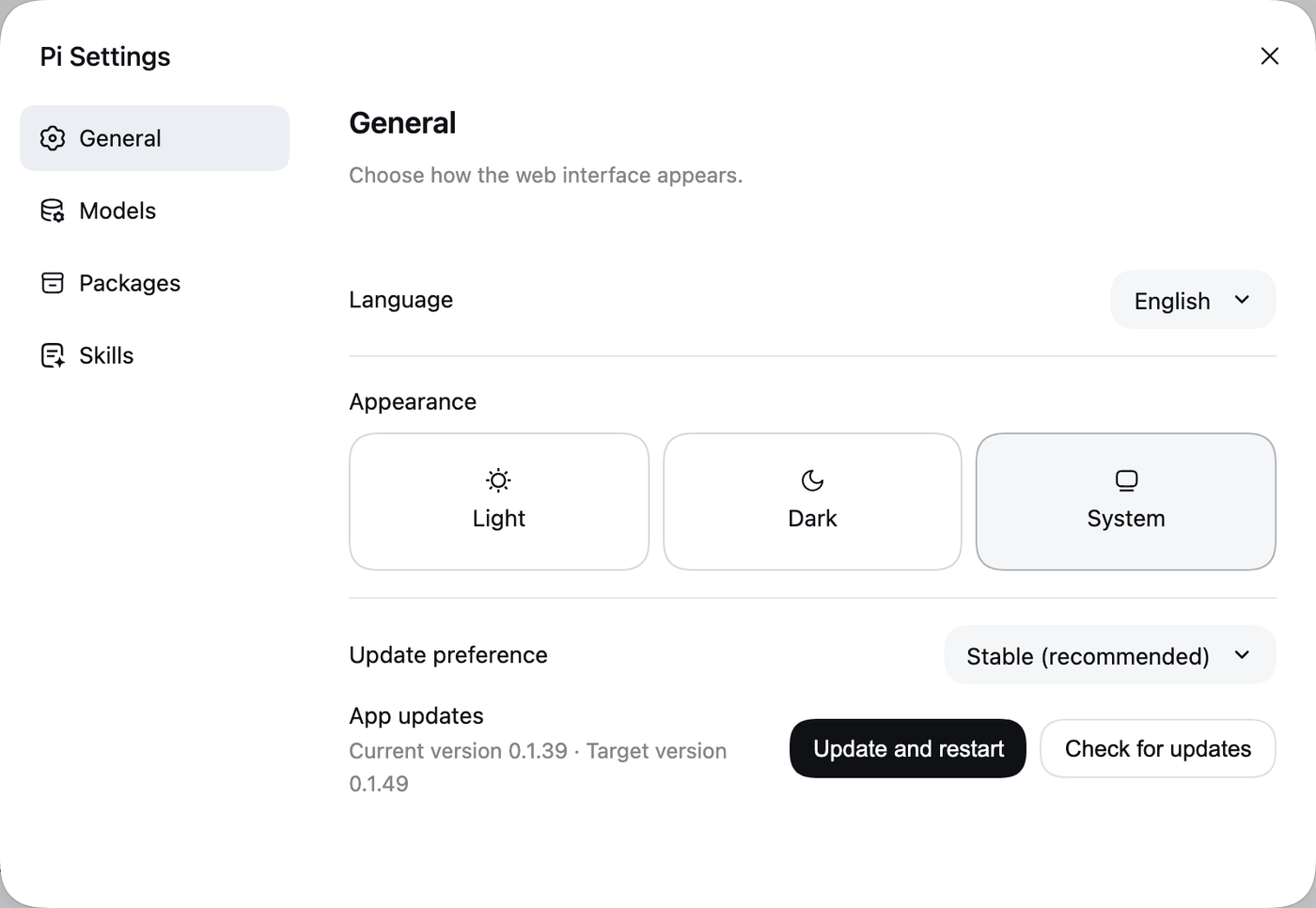
- Open Pi Settings → General. Under App updates you see Current version and Target version. A dot on Download updates at the bottom of the sidebar also means a newer version was found.
- Click Check for updates if you want to refresh the target.
- Click Update and restart. The status moves through installing and restarting, and the page reconnects at the same address, because the new service keeps the old port and access token.
What this does and doesn't do:
- It downloads a verified release into Pi's data folder (
pi-web/releases/) and starts it. It does not change your npm global installation, sonpm ls -g pi-webappcan show an older version than the one running. The running version is the one in Settings. - Later starts of
npx pi-webapporpi-webapppick the updated release automatically. - Each release brings the Pi runtime version it was tested with, so updating the app can update Pi's version for the service. Your global
pi, if you have one, is not touched. - If the new version fails to start, the launcher tries to start the previous version again. That restores the service, but not any work that was running.
- If the target changes or you change the preference between checking and installing, installation stops and asks for a fresh check instead of silently installing something else.
If the page doesn't come back after a minute or two, see Troubleshooting.
Stable or preview
Under Update preference choose:
- Stable (recommended): follows the release published under npm's
latesttag. - Preview (including alpha): follows the newer of the
latestandalphatags. Preview releases contain features that are still being tested and may be unstable. A stable release that supersedes an older alpha is offered as an update; an older alpha is never offered as an "upgrade".
The preference is saved in Pi's data folder, so it survives restarts, reloads and other browsers. Changing it installs nothing and doesn't restart anything: review the target, then click Update and restart.
If you're running an alpha that is newer than the latest stable release and select Stable, the button reads Switch to stable and restart. That installs an older version. Back up important data first. If the data format differs, the switch is blocked; there is no automatic data conversion.
The preference controls the npm package that the service runs. It is separate from the desktop app's own update channel.
Update from the Pi terminal (/web)
In this mode pi-webapp can show its version but can't restart itself. Quit Pi, then update the extension from your normal shell:
pi update npm:pi-webappStart pi again and enter /web. Use the source you installed with (check with pi list). A bare pi update updates Pi itself, not the extension, so name the package. Pi's own version and the extension's version are independent.
Update a source checkout
git pull
npm ci
npm run build
npm run stop
npm run start
Refreshing an old page doesn't replace backend code: the service has to be restarted. With pi -e ., rebuild and then enter /reload and /web in Pi.
Desktop notes
The desktop app has two separate things to update: the shell (the installed app) and the business package (the pi-webapp version it runs). The About dialog (pi → 关于 pi) shows the shell version and desktop build number, and Settings shows the running package. See Desktop app for the shell, and for how a desktop that reuses a running service picks up preview updates.