
Troubleshooting
This page lists problems in the form symptom → cause → fix. Find the entry that matches what you see. Before you start, know which way you're running pi-webapp (web launcher, /web in Pi, or the desktop app), because the fixes differ.
Don't "fix" anything by deleting ~/.pi: it holds your sessions and credentials. None of the steps below needs you to share a token or key.
Messages are in Chinese
The command-line launcher prints Chinese only for now. The exact text is quoted below so you can search for it, with its meaning. All launcher messages are in the reference.
Starting and opening
The browser doesn't open, or I closed the tab
Cause. The launcher opens a browser only on a local graphical session. It doesn't try over SSH, on Linux without DISPLAY or WAYLAND_DISPLAY, in the desktop app, or when PI_WEBAPP_AUTO_OPEN=0 is set. When it can't open one it says 当前没有本地图形桌面,请手动打开上方地址。 ("No local desktop here; open the address above yourself.").
Fix. Print the address and open it in a browser:
npx pi-webapp statuspi-webapp 正在运行:http://127.0.0.1:52395/#<token>On a remote machine, forward the port instead of exposing it.
pi-webapp 未运行 ("not running") right after I started it, or the next day
Cause. The service stopped: you ran pi-webapp stop, rebooted, logged out, or Pi exited. It isn't a system service and doesn't start by itself.
Fix. Run npx pi-webapp again. It gets a new port and a new token, so bookmarks from before won't work. If it stopped unexpectedly, read the end of the log.
The page opens but says "Open the full address provided by /web in Pi"
Cause. You opened the address without its token, for example by typing http://127.0.0.1:52395 and dropping the #… part. The message mentions /web because the same page is used by the Pi-terminal mode.
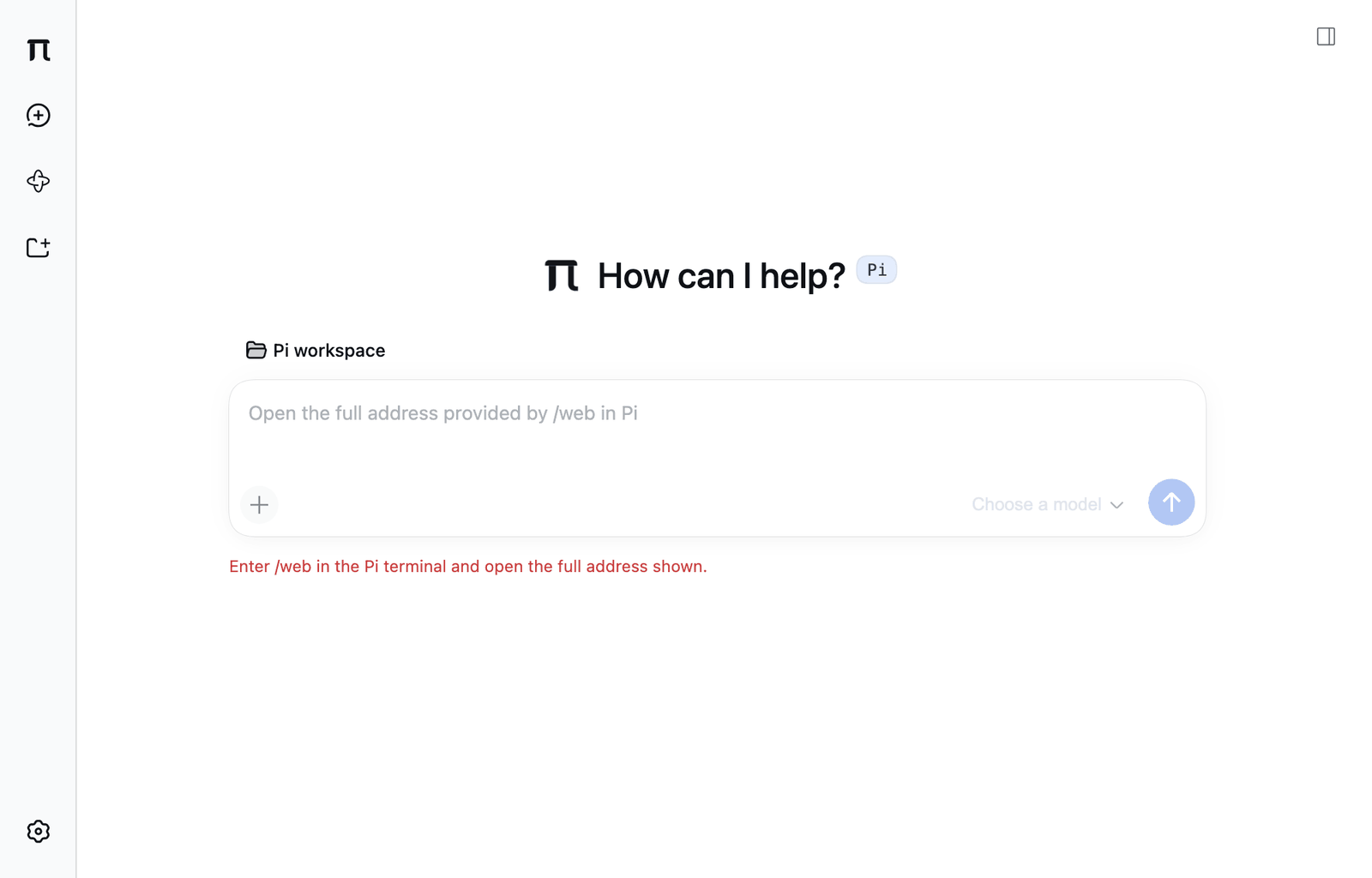
Fix. Run npx pi-webapp status (or /web in Pi) and open the whole address.
Messages say 访问令牌无效 ("access token is invalid")
Cause. The page's token isn't the service's current token, usually because the service restarted and you're on an old tab or bookmark.
Fix. Close the old tab and open the current address from npx pi-webapp status.
The page shows 来源不匹配 ("origin mismatch"), or live updates don't arrive
Cause. You reached the service through a forwarded or proxied port that differs from the one it printed. It only accepts requests from exactly that address.
Fix. Forward the same port number on your side, for example ssh -L 52395:127.0.0.1:52395 you@host, and open the printed address as it is. Don't put it behind a reverse proxy on another port.
pi-webapp: 需要 Node.js 22.19 或更新版本。
Cause. Your Node.js is older than 22.19.
Fix. Check with node --version and install a current LTS from nodejs.org.
Pi 版本 … 不受支持,需要 0.87.1 或更新版本
Cause. The launcher fell back to a Pi on your PATH and it is too old. This happens in a source checkout and in older packages; the normal npm package uses its own pinned Pi.
Fix. Update Pi with your usual method and run pi --version to confirm. The launcher never replaces a Pi you installed yourself.
Pi 启动超时 or 后台启动超时 ("startup timed out") followed by a log path
Cause. Pi didn't report ready within about a minute. Typical reasons are a slow first download, a failing extension, or a corrupt data file.
Fix. Read the log named in the message (where it is), fix what it reports, and try again. If a previous start is still shutting down, wait and retry.
找不到构建后的扩展。请先运行 npm run build。
Cause. You're running from a source checkout that hasn't been built.
Fix. Run npm ci and npm run build in the repository, then npm run start.
The service works but I launched it from the wrong folder
Cause. Re-running npx pi-webapp in another folder doesn't add that folder, because the service is already running.
Fix. Use Add workspace in the sidebar (Sessions and workspaces).
A workspace or chat is missing from the sidebar
Cause. You removed the workspace from the list, or its chats are stored under a different Pi data folder (PI_CODING_AGENT_DIR). A chat with nothing in it is listed only while it is open, and a chat you deleted is in pi-web/trash/.
Fix. Click Add workspace and choose the folder again. Check Files and directories if you use a custom data folder. Removing a workspace never deletes its sessions. To bring back a deleted chat, move its file from pi-web/trash/ back under sessions/.
Models and replies
The reply fails with an authentication or network error
Cause. The key or sign-in is missing or expired, the model name isn't valid for the provider, or the machine running the service can't reach the provider. The error text in the chat is Model request failed or the provider's own message.
Fix.
- Open Pi Settings → Models, click Edit on the provider, and re-enter the key or sign in again.
- Check that the model you picked exists for that provider.
- Behind a proxy? Set
HTTPS_PROXY(andHTTP_PROXY,NO_PROXYas needed) in the environment of the process that starts the service, then restart it.ALL_PROXYis also read.
"The model service usage limit has been reached"
Cause. The provider's quota is used up.
Fix. Switch to another model or provider, or wait until the limit resets.
"Choose a model to start chatting" and the model list is empty
Cause. No provider is connected yet, or it was connected but has no models.
Fix. Follow Models and providers. A custom provider needs at least one Model ID.
Browser sign-in finishes on the provider's page but pi-webapp doesn't notice
Cause. The provider's callback couldn't reach the machine that runs Pi, which is typical for remote or containerized setups.
Fix. In the sign-in card open Can't finish automatically? Enter an authorization code and paste the code. Don't paste codes into the chat.
A slash command does nothing, or "Wait for the current reply before running slash commands"
Cause. Slash commands run only while Pi is idle, and can't be queued.
Fix. Wait for the reply to end, or Pause it, then run the command.
Stopping and updating
pi-webapp stop is refused because a plugin view has not saved
pi-webapp: 停止已取消:插件保存或释放未完成,服务及数据已保留。请先保存并关闭所有 pi-webapp 浏览器标签页,或在插件页处理未确认的视图后重试;开发时可运行 pi-webapp stop --force 强制停止(可能丢失未保存的编辑)。Meaning: "Stop cancelled: a plugin save or release did not finish. The service and your data are kept."
Cause. A plugin view, such as an open Excalidraw editor, hasn't confirmed that its content is saved. Closing the browser without closing the editor leaves it in that state.
Fix. Reopen the page, save and close the drawing or editor, and run pi-webapp stop again. If the view is gone for good, use the plugin recovery dialog to keep or discard its unconfirmed edits. As a last resort:
npx pi-webapp stop --forcepi-webapp: 强制停止将跳过插件视图的保存确认,未保存的编辑可能丢失。
pi-webapp 已强制停止--force skips the save check, so unsaved edits can be lost. If the service doesn't answer within five seconds, it also ends the background process and its children directly, and prints pi-webapp: 服务 5 秒内没有响应强制停止,正在直接结束后台进程及其子进程。 first.
停止超时。后台进程 PID:… ("stop timed out")
Cause. The service didn't finish shutting down within about 40 seconds.
Fix. Check the log for why, then use pi-webapp stop --force.
The page never returns after an update
Cause. The new version didn't start in time, or it started and the launcher rolled back to the old one. A message may say the new version was not ready and that the backend may have rolled back.
Fix.
- Run
npx pi-webapp status. If it prints an address, open it. Check Pi Settings → General for the running version. - If it prints
未运行, make sure no work is in progress, then start it again withnpx pi-webapp. - If it keeps failing, read the log. Don't delete
~/.pior editpi-web/releases/by hand to "fix" it.
An update stops with "A plugin view has not confirmed its save"
Cause. An editor or drawing view didn't confirm within 15 seconds that its content is saved, so the version switch was refused to protect your edits.
Fix. Save and close drawings and editors. If a view was left disconnected after a reload, review its local copy in the Plugin view recovery dialog, keep or discard it, and retry.
Tools
The terminal tab disappeared, or its process is gone
Cause. Reloading the page resets tabs. Stopping or restarting the service ends terminal processes. A browser that was disconnected for more than five minutes loses its terminal.
Fix. Open a new terminal. Before you rerun anything, check what the old command already changed.
The terminal reports that the default shell doesn't exist
Cause. SHELL (on Windows, COMSPEC) points to a program that is missing or not executable.
Fix. Set it to a real shell in the environment that starts the service, and restart the service.
Git is greyed out, "busy" or blocked
Cause. A chat that shares the working tree is running, or Git has a lock file, an unresolved conflict or an operation in progress, or a branch you want is checked out in another worktree. Git itself might also not be installed.
Fix. Wait for related chats to become idle and refresh. Don't delete lock files or force a branch switch blindly; finish or abort the Git operation in the terminal. Check git --version.
A plugin switch is disabled, or turning it on or off is refused
Cause. Plugin switches need every chat to be idle, and the page shows the confirmed state only.
Fix. Wait for chats to finish or pause them, then try again. An official plugin must be downloaded before its switch works.
Downloading the Excalidraw plugin fails
Cause. The service couldn't reach npm, or no compatible release was available. Failed downloads aren't retried automatically and the version you already have stays in place.
Fix. Check the network and press Download (or Check updates) again.
A file preview is stale
Cause. Previews and listings don't refresh on their own.
Fix. Use the refresh button in the Files tab.
Desktop
macOS says the app can't be opened
Cause. The test build is ad-hoc signed and not notarized.
Fix. Follow the checks in Desktop app → macOS. If the checksum or codesign check fails, stop. Never disable Gatekeeper or SIP.
The desktop app shows a different version than Settings
Cause. They are different things: the shell (pi → 关于 pi) and the running pi-webapp package (Pi Settings → General). A reused service can also be older than the app.
Fix. See Desktop app → Update.
Collect information for a bug report
The launcher log is the first thing to read and attach (after reading it yourself):
| System | Path |
|---|---|
| macOS, Linux | ~/.pi/agent/pi-web/launcher.log |
| Windows | %USERPROFILE%\.pi\agent\pi-web\launcher.log |
If you set PI_CODING_AGENT_DIR, it is pi-web/launcher.log under that folder. Lines are JSON events such as launcher_ready, launcher_stop_requested and pi_process_exit (with a reason).
When you open an issue, include:
- your OS and CPU, Node.js version, pi-webapp version (Pi Settings → General) or desktop build number, and how you run it;
- the exact steps, what you expected and what happened;
- sanitized error text and, if useful, a screenshot.
Leave out the full address with its token, absolute paths you consider private, private conversations, attachments, auth.json and private keys. Never upload the whole data folder.